
Stop cleanly. Resume from evidence.
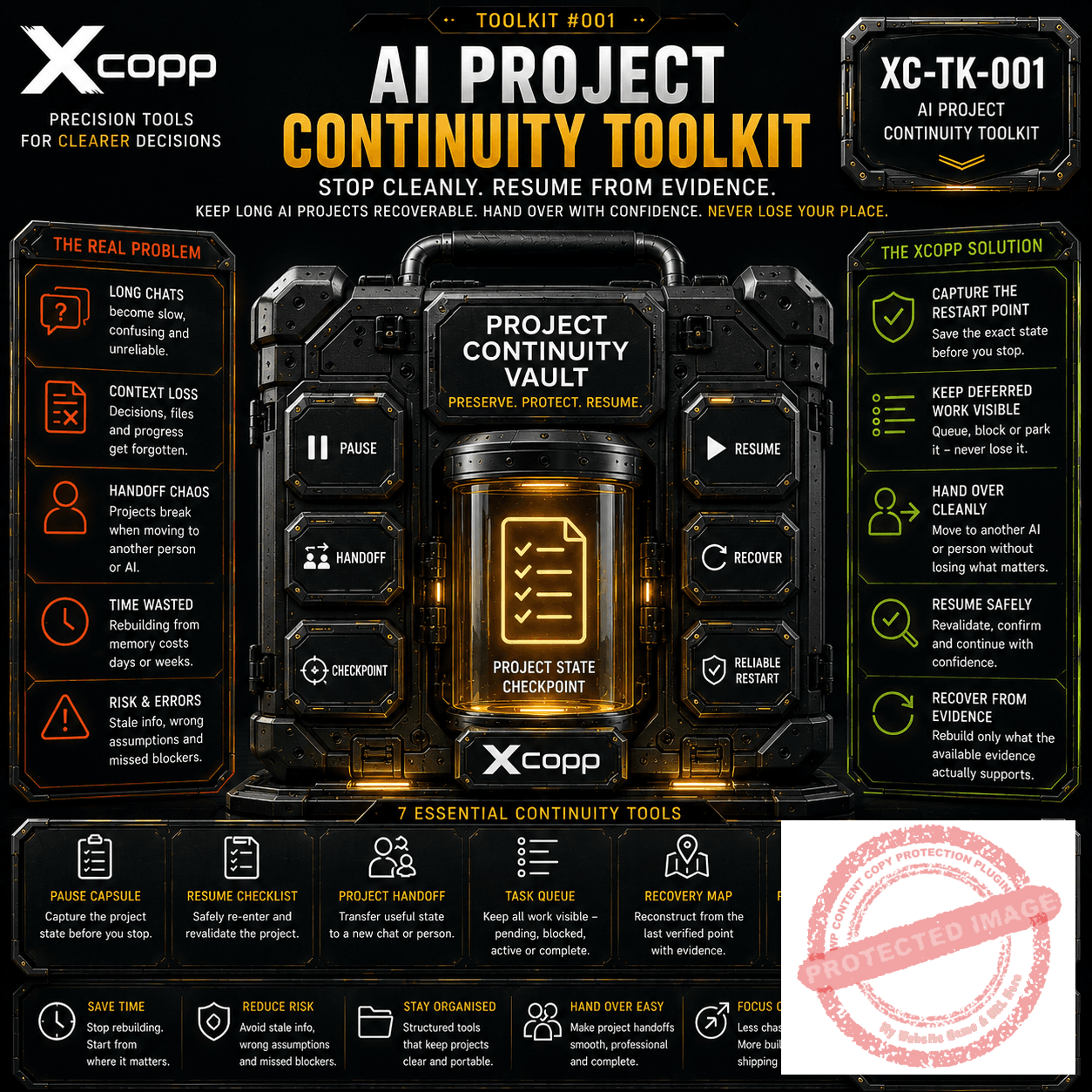
Long AI-assisted projects rarely fail because nobody has another idea.
They fail because the state gets lost.
The chat becomes enormous. Work stops for two weeks. You open a new conversation. A blocker gets forgotten. An old file gets treated as current. A deferred task quietly disappears.
Or everybody remembers what they were building — but nobody remembers exactly where they stopped.
AI Project Continuity Toolkit gives you a practical set of reusable tools for pausing, handing over, queuing, resuming and recovering project work without relying on imaginary AI memory.
What is an XCopp Toolkit?
A Toolkit is a collection of practical, reusable tools built around one real working problem.
Instead of giving you one isolated prompt or theory-heavy guide, a Toolkit gives you multiple operating assets that work together.
This Toolkit focuses on one problem:
Keeping long AI-assisted projects recoverable when work stops, moves, changes hands or loses context.
What can you use it for?
Use the Toolkit when:
- an AI conversation is becoming too long;
- you need to stop work for days or weeks;
- you are moving a project into another AI chat;
- you are changing AI assistant;
- somebody else needs to continue the project;
- the project contains blockers or deferred work;
- you return to a project and no longer trust the old state;
- important decisions need to survive the conversation that created them;
- you need a reliable restart point instead of reconstructing everything from memory.
It is particularly useful if “Right… where were we?” has become part of your project-management strategy.
How it works
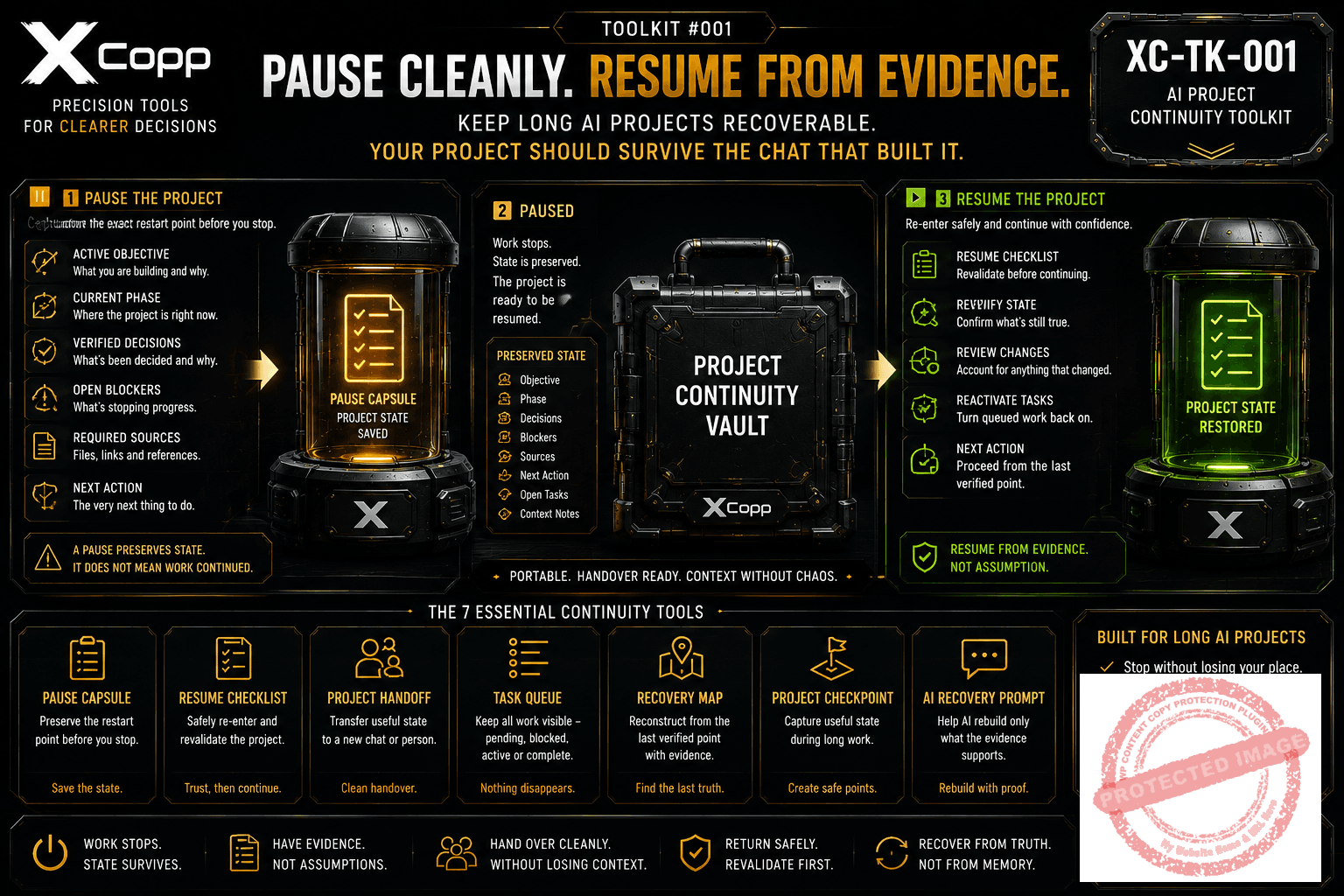
1. Pause the project properly
Use the Pause Capsule before stopping.
Capture the active objective, current phase, verified decisions, open blockers, required sources and next action.
2. Keep deferred work visible
Use the Task Queue to explicitly mark work as:
- Pending;
- Active;
- Blocked;
- Complete;
- Cancelled.
A queued task remains a queued task.
It does not pretend an AI continued working in the background while you were away.
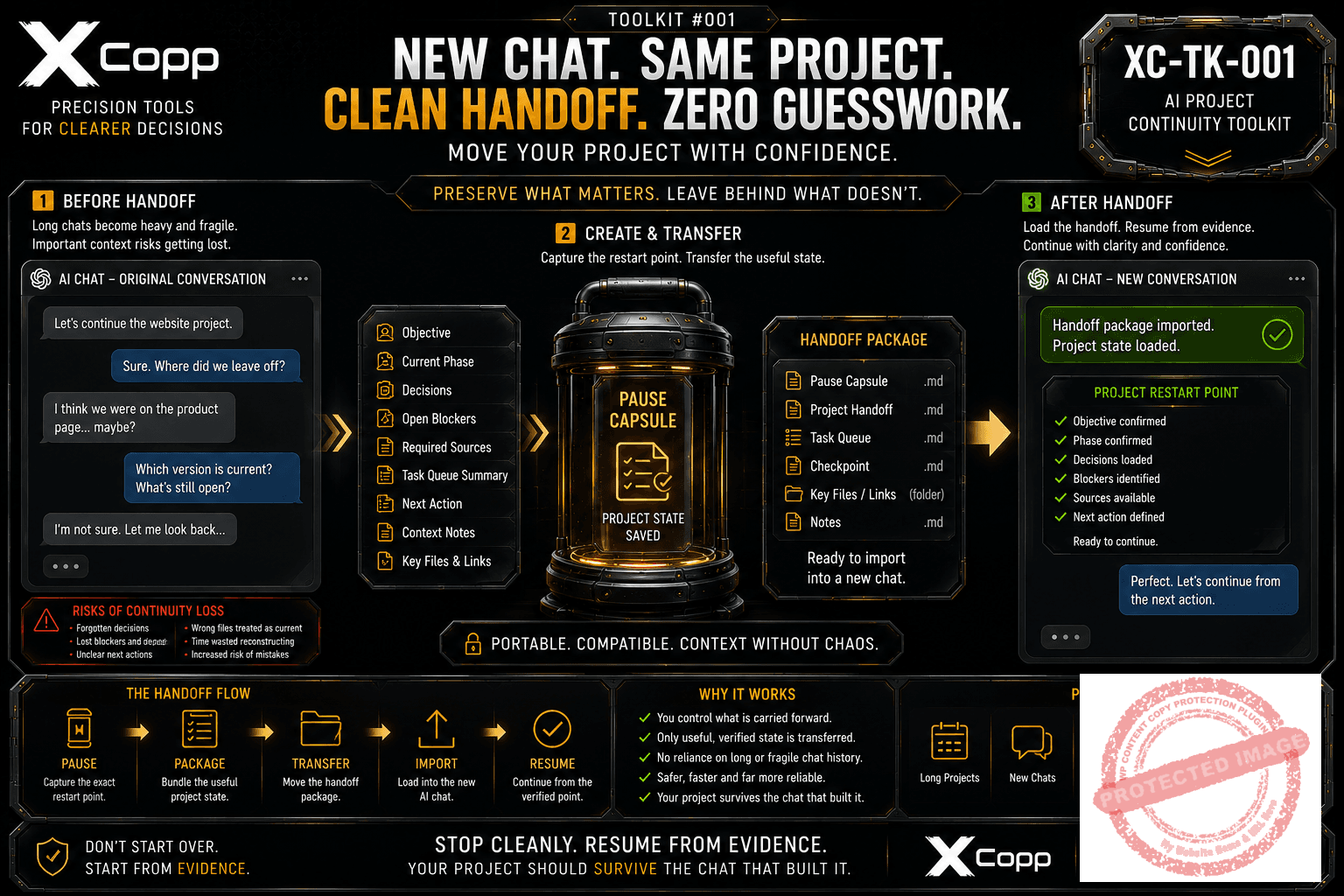
3. Hand the project over cleanly
Use the Project Handoff when work needs to move into another chat, AI assistant or person.
Carry forward the useful project state — not the entire conversation history.
4. Resume carefully
Use the Resume Checklist when returning.
Revalidate anything that may have changed before treating the old project state as current truth.
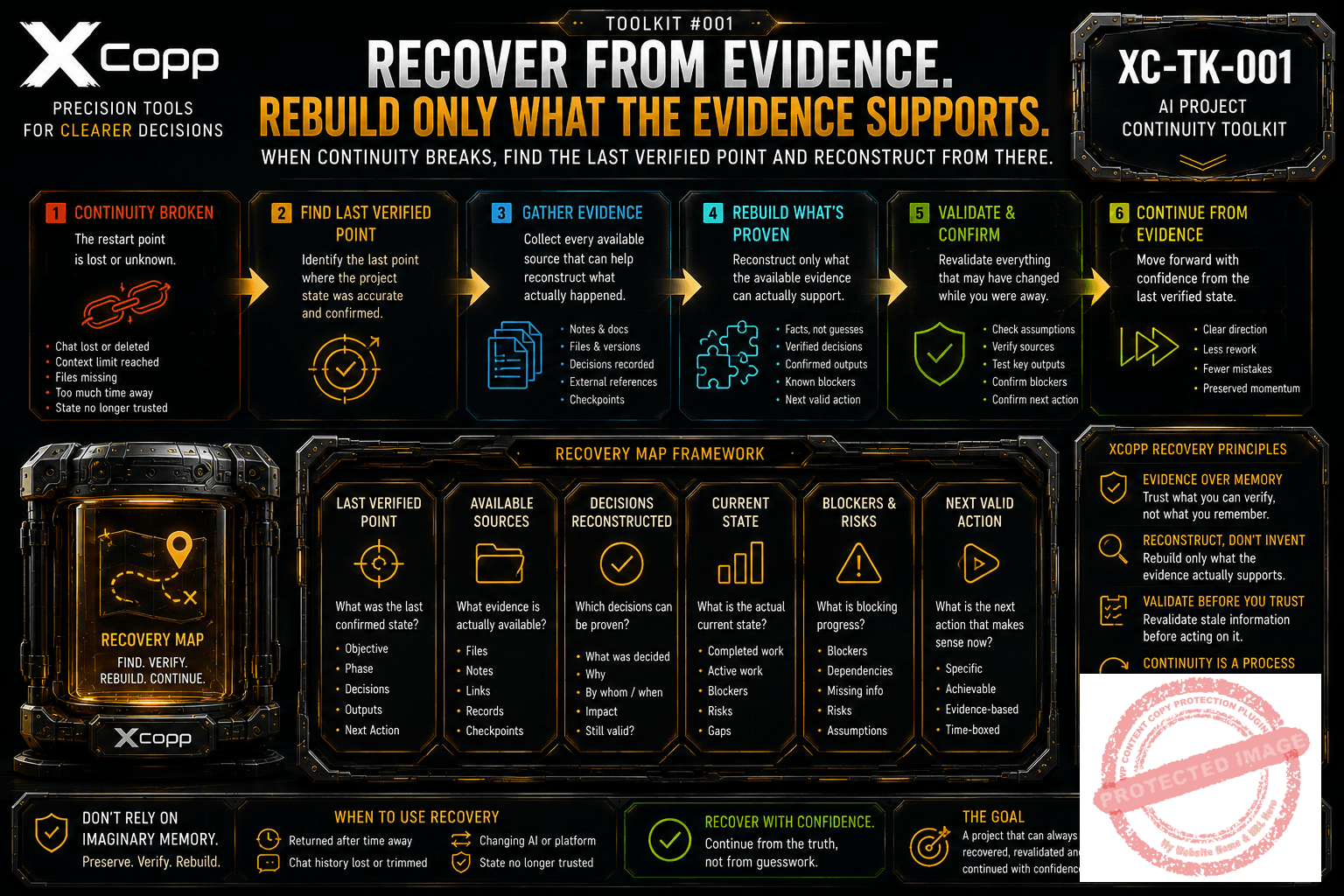
5. Recover when continuity breaks
Use the Recovery Map and AI Recovery Prompt when the clean restart point has already been lost.
Identify the last verified state and rebuild only as far as the available evidence supports.
6. Create checkpoints during long work
Use the Project Checkpoint to preserve useful state before the project becomes difficult to recover.
Example
Imagine you have spent several days building a website with an AI assistant.
You stop for three weeks.
When you return, simply saying:
“Carry on with the website.”
creates several problems.
The AI may not know:
- which objective was active;
- which files are current;
- which decisions were already made;
- what was blocked;
- what changed while you were away;
- or what the next action was supposed to be.
A saved Pause Capsule might instead contain:
Objective: publish the first product page.
Current phase: WooCommerce deployment.
Verified decisions: retain the current XCopp visual system.
Open blocker: customer download journey still needs testing.
Required sources: current customer package and product assets.
Next action: complete the live product listing and test delivery.
When you return, run the Resume Checklist, revalidate anything that may have changed and continue from the last verified point.
That is continuity.
What you receive
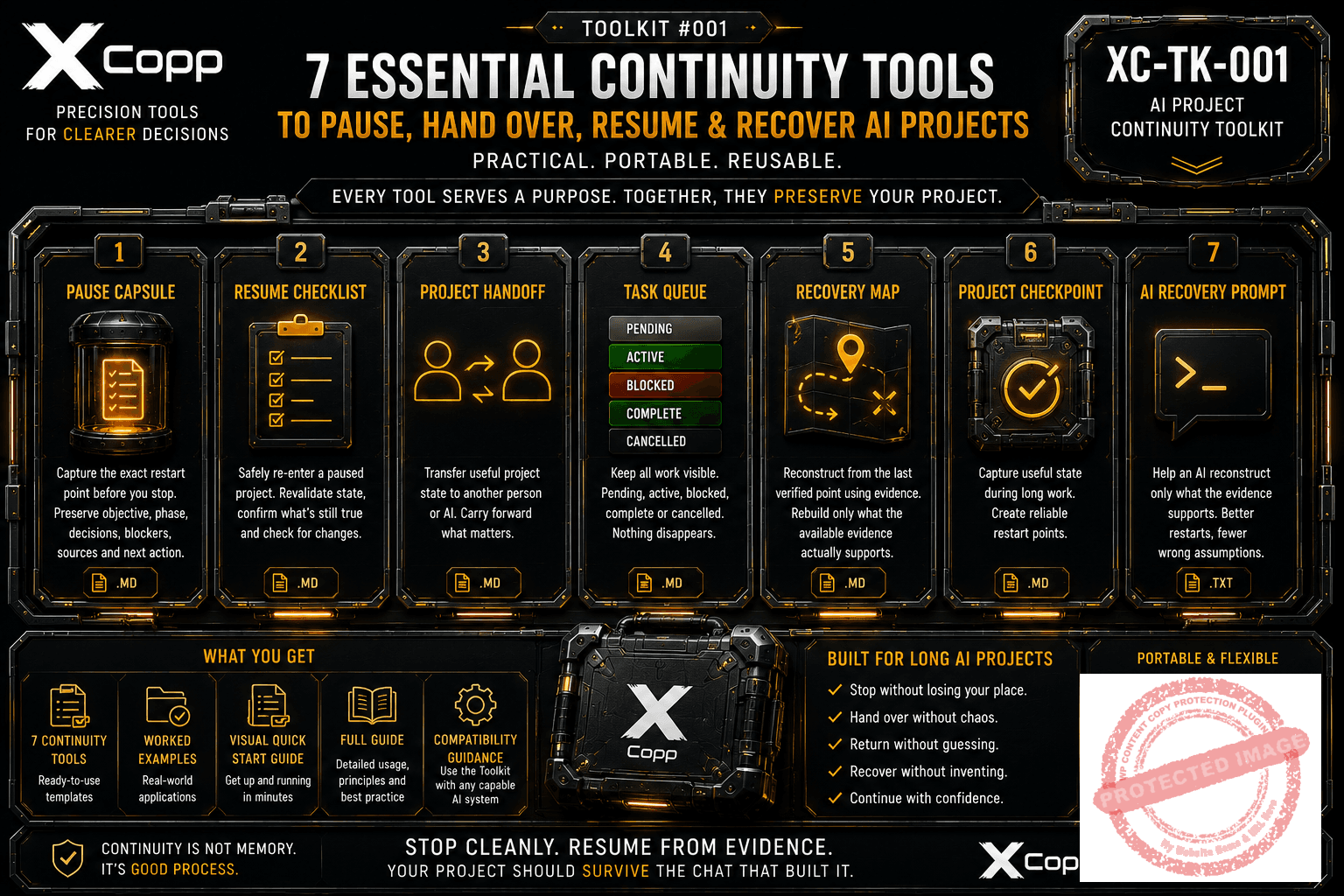
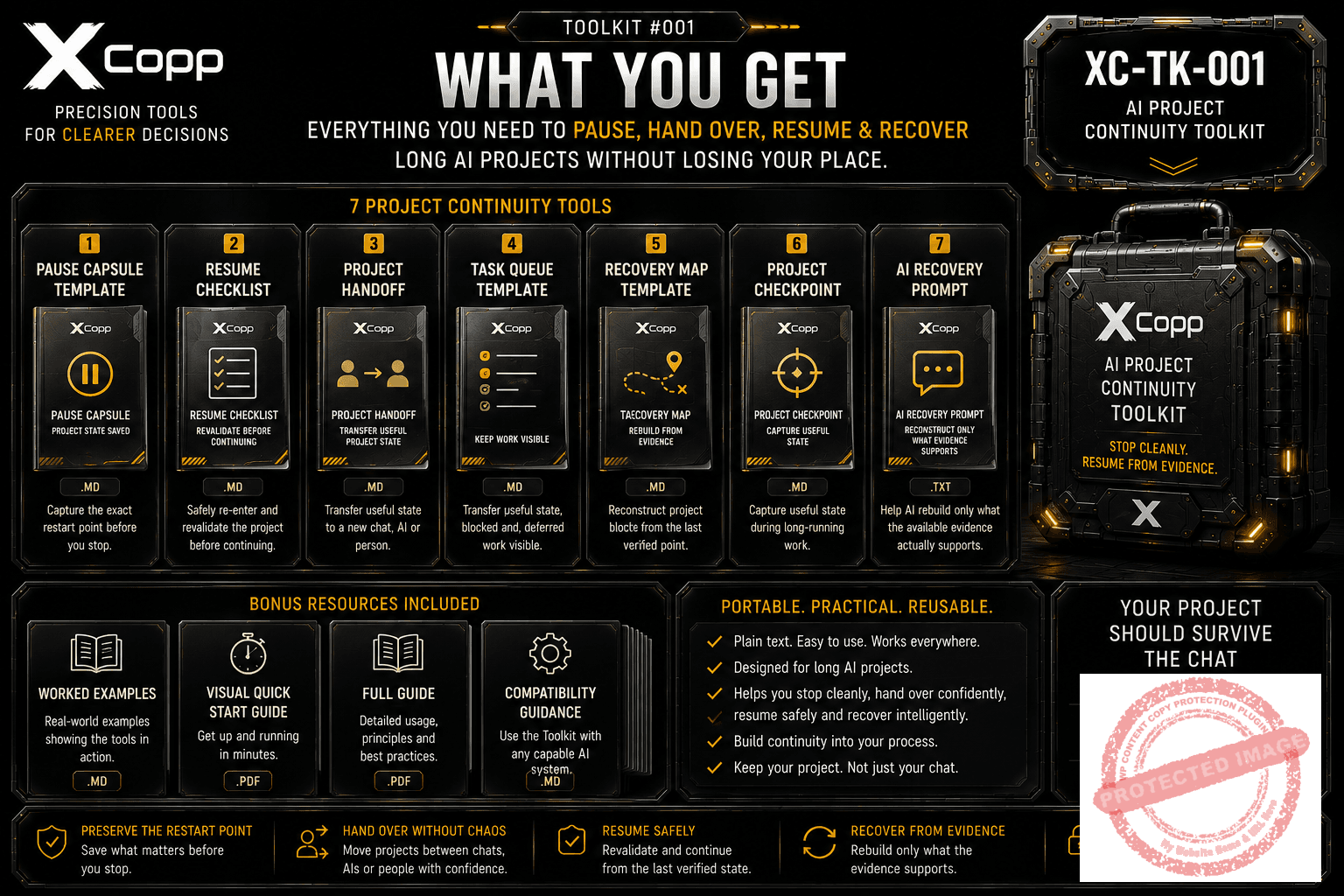
Your download contains seven practical project-continuity tools:
- Pause Capsule Template — preserve the restart point before stopping;
- Resume Checklist — safely re-enter a paused project;
- Project Handoff Template — transfer useful project state to another person or AI;
- Task Queue Template — preserve deferred, blocked and active work honestly;
- Recovery Map Template — reconstruct project state after continuity has already broken;
- Project Checkpoint — capture useful project state during long-running work;
- AI Recovery Prompt — help an AI reconstruct only what the available evidence supports.
You also receive:
- worked examples;
- Visual Quick Start PDF;
- Full Guide PDF;
- compatibility guidance.
Everything is designed to be practical, reusable and portable.
Do I need project-management software?
No.
This is not another project-management app.
The Toolkit uses portable plain-text operating tools that can live alongside your existing AI chats, notes, folders and project system.
You can start with the simplest tool you need and add the others when the project warrants them.
Does it work with every AI?
The Toolkit is designed around portable project-continuity principles that can be used with capable conversational AI systems.
Different AI platforms may have different:
- file support;
- memory behaviour;
- context limits;
- project features;
- tools;
- instruction handling.
The Toolkit therefore does not rely on pretending every AI system works the same way.
What this Toolkit doesn’t do
It does not make an AI continue working while you are away.
It does not create permanent universal AI memory.
It does not make stale project information current simply because it was once written down.
It does not replace source files or evidence you no longer possess.
And when continuity has already broken, it should not invent missing project history just to make the reconstruction look complete.
A pause preserves state. It does not mean work continued.
Your project should survive the chat that built it.
Stop cleanly.
Resume from evidence.
Keep the work recoverable.



Reviews
There are no reviews yet.